October 21, 2026
Illustrated user guide
From a source photograph to an editable project, a bitmap engraving, or traced SVG paths. Use the contents to jump to a tool, or download the PDF to keep or print.
1. Your first engraving
Laser Engraving Studio prepares photographs and artwork as bitmap images or traced SVG paths. It does not connect to a laser, send machine instructions, or automatically choose a tested power and speed. Your laser software handles placement and the actual job.
The main workflow is source image, composition and grayscale adjustment, engraving conversion, cleanup, and export. Images are processed in the browser. Save project writes an editable archive to a folder you choose on your own computer. Project data is not uploaded to the server.
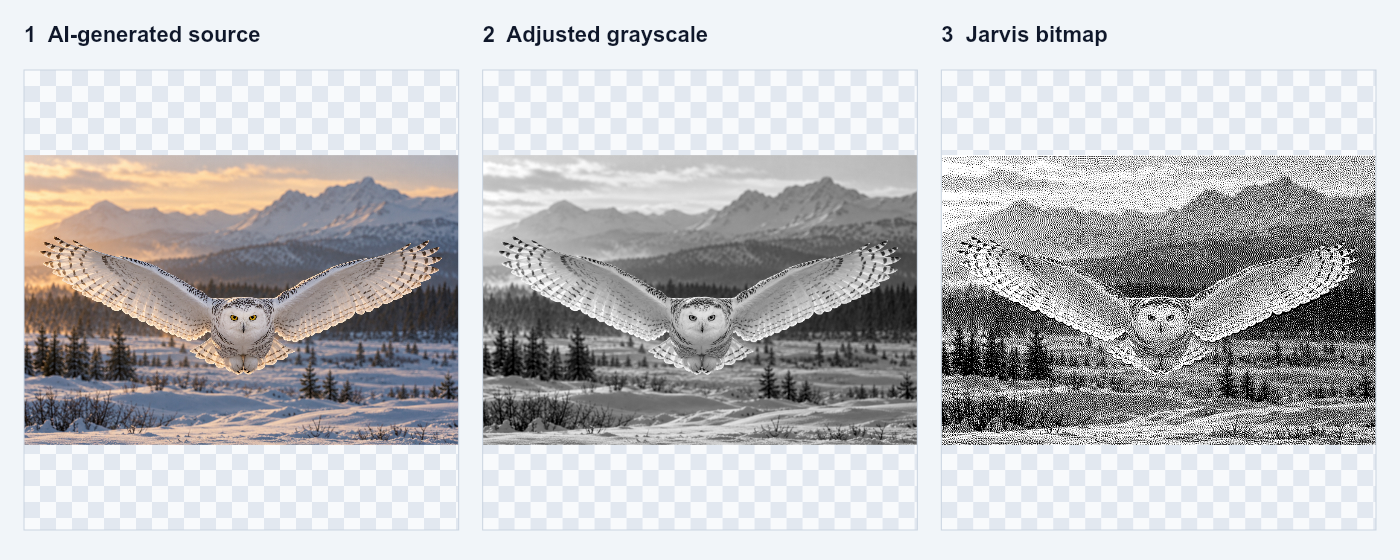
- Upload a PNG, JPEG, WebP, or BMP using Upload or replace image, or try the demo. The source limit is 30 MB and 40 megapixels.
- Use Subject & composition to crop, remove the background, or paint local adjustments. Switch to Image preview to inspect the adjusted grayscale.
- In Laser setup & presets, set the physical width and height, DPI, and Bitmap Graphics or Vector Graphics. Choose a bitmap algorithm such as Jarvis for a bitmap example.
- Adjust brightness, contrast, gamma, and detail on the left. On desktop the left controls and active tab scroll independently.
- Click Grayscale looks good - show engraving. Inspect the converted output at Actual pixels (1:1), then use Erase dots and Restore dots if needed.
- Save project to preserve further editing. Download PNG or BMP for bitmap engraving, or Download SVG in Vector Graphics. Import the exported file into your laser software and confirm its physical size.
2. Find your way around the workspace
The four tabs keep the tools in one workspace instead of one long stack of sections. Image preview is selected by default. Changing tabs preserves your image, masks, conversion, and engraving cleanup.
The left panel contains upload, orientation, center crop, material selection, the bitmap algorithm, grayscale adjustments, and levels/detail/curve controls. Project save/open controls and the material library sit above the tabbed workspace.
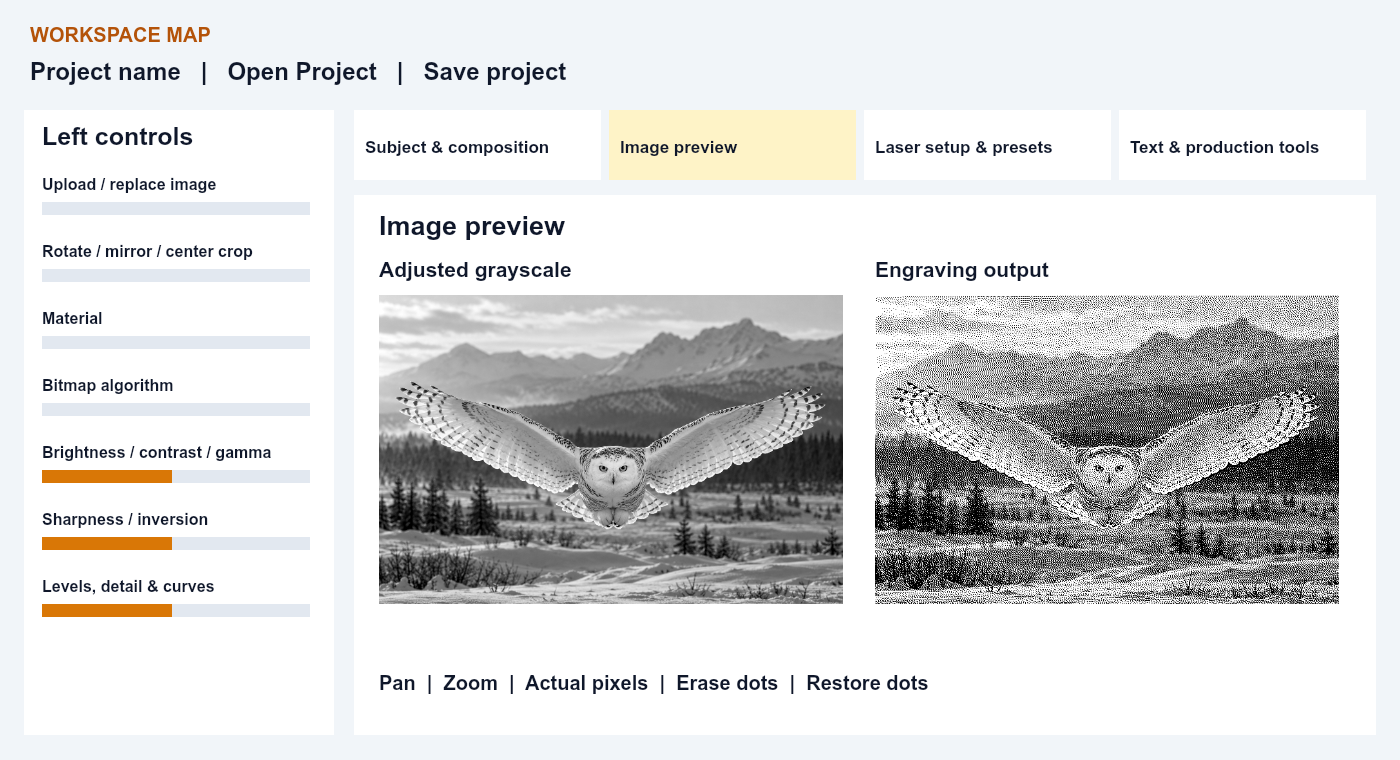
Where to work
| Tab | Purpose |
|---|---|
| Subject & composition | Crop shapes; background removal and refinement; local brightness, contrast and sharpness; transparent cutout download. |
| Image preview | Original/crop view, adjusted grayscale and histogram, approval step, engraving preview, cleanup brushes, PNG/BMP exports. |
| Laser setup & presets | Laser and module, named presets, graphics type, algorithm, dimensions, DPI/line spacing, machine settings. |
| Text, framing & production tools | Add text/frame, export a contour, compare DPI or algorithms, and batch-convert multiple images. |
3. Upload, rotate, mirror and crop
Upload or replace image accepts one source at a time. Rotate 90 degrees turns it by a quarter turn; Mirror reverses it horizontally. Center crop (% retained) keeps a centered fraction of the image. The interactive crop editor provides a more precise selection.
A crop changes the area used for conversion and export without deleting the original source pixels. Apply crop displays the cropped result in the source editor. Edit crop returns to the full source and selection handles. Reset crop restores the full image.
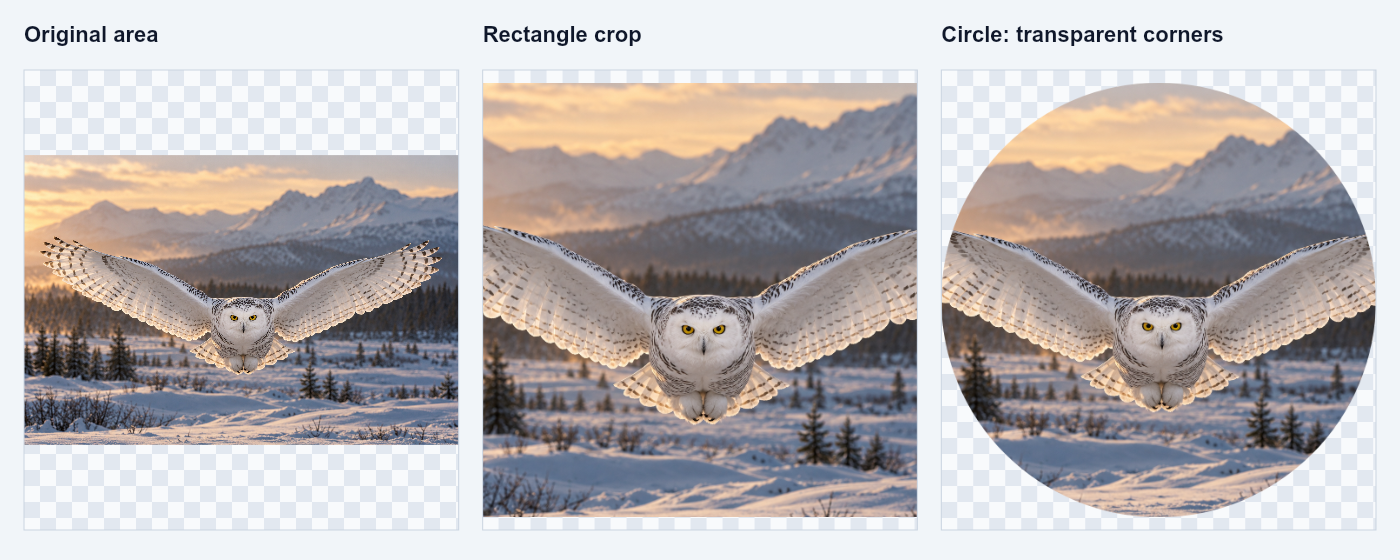
- Open Subject & composition and select Crop. Choose Rectangle or Ellipse / circle.
- Drag outside an existing selection to draw a new crop. Drag inside to move it; use the lower-right handle to resize. The X, Y, width and height fields use percentages of the original source.
- For a circle, choose the ellipse shape and click Square / circle crop. The square selection makes its ellipse circular in source coordinates. Keep aspect locking enabled to avoid stretching the output.
- Click Apply crop to view the result. Grayscale, engraving and exports automatically use the selected area. Use Edit crop for another adjustment.
4. Remove and refine a background
Remove background (AI) estimates a subject mask using the bundled local model. The original image is retained. Difficult hair, feathers, fine gaps, or low-contrast edges may need manual refinement.
Erase hides source pixels. Restore reveals the original source pixels, including details missed by AI. These are subject-mask brushes, separate from the converted-output dot brushes.
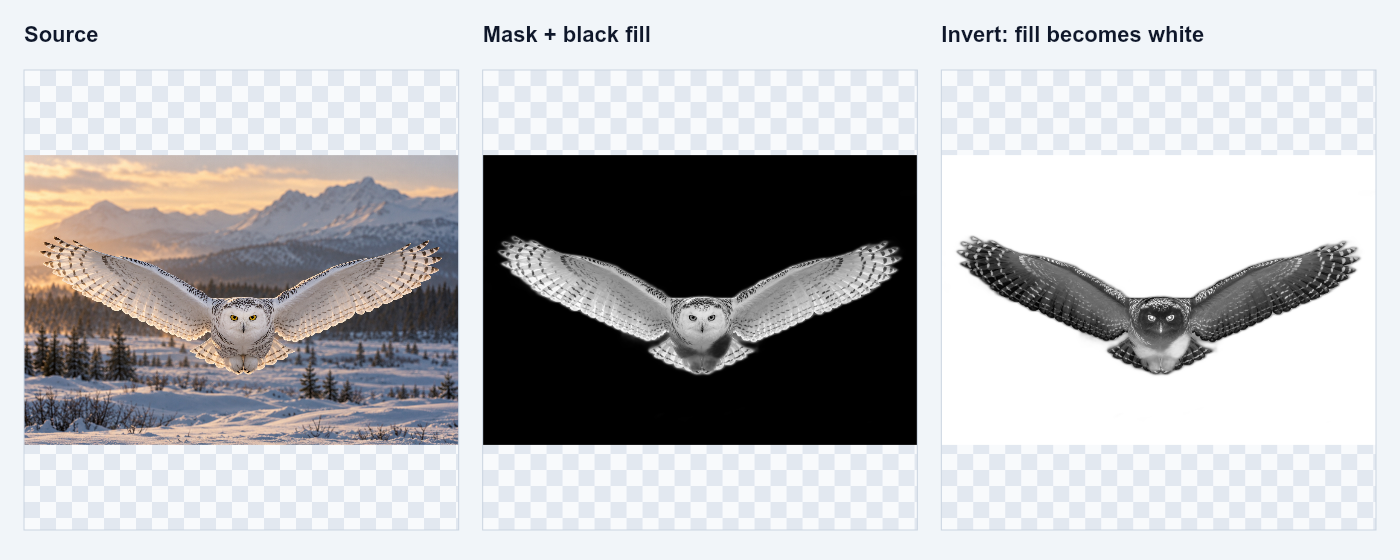
- Click Remove background (AI). Wait for its progress message; Cancel AI stops the job.
- Choose Erase or Restore. Move over the source to see a circular brush outline. Change Brush radius with its slider or the mouse wheel over the image. Paint carefully near the edges.
- Use Feather to soften the mask edge. Excessive feathering can blur fine subject detail; inspect the grayscale and converted views after each change.
- Choose Removed background fill: White or Black. This fill is used for grayscale and engraving. Invert black and white flips the selected fill as well as the image.
- Use Show original image to compare. Restore full background clears the mask. Download transparent cutout exports the masked source with transparency instead of the engraving fill.
5. Grayscale adjustments and detail controls
Use the grayscale view before judging dithering. It shows tone and detail without a dot pattern. Changes on the left update the grayscale and converted output automatically after processing. The histogram runs from dark tones on the left to highlights on the right.
Work in small steps: establish the useful tonal range, adjust midtones, then add only as much sharpening as the image needs. More contrast or sharpness can remove subtle detail as easily as reveal it.
Primary adjustments
| Control | What it changes |
|---|---|
| Brightness (-100 to 100) | Raises or lowers overall tone. Example: a small positive value can separate a dark face from surrounding shadows. |
| Contrast (-100 to 100) | Separates lighter and darker tones. Too much can turn soft feathers into empty white and solid black areas. |
| Gamma | Changes midtones nonlinearly. In this tool, gamma above 1 lightens midtones; below 1 darkens them. |
| Sharpness (0 to 200) | Increases edge detail. Inspect actual pixels for halos or speckled texture. |
| Threshold | Changes the black/white cutoff in threshold-based conversions. Error-diffusion patterns also use the cutoff. |
| Invert black and white | Reverses tone and the selected removed-background fill. Transparent crop areas stay transparent. |
Levels, detail & curves
| Control | How to use it |
|---|---|
| Auto levels; black/white point | Auto levels estimates a useful range from the prepared source. Manual points map the selected dark/light limits toward black/white. Keep white above black. |
| Shadows and Highlights | Adjust dark or light parts separately rather than moving the entire image. |
| Curve: shadows/midtones/highlights | Shape three parts of the tonal curve for more targeted changes. |
| Noise reduction radius (0 to 5) | Smooths small variations before sharpening and conversion. A larger radius removes more small detail. |
| Sharpening radius (1 to 8) | Sets the scale of the sharpening effect. |
| Sharpening detail threshold (0 to 100) | Limits sharpening of small tonal differences; useful when sharpening also amplifies noise. |
| Halftone dot cell (2 to 20 px) | Visible when Halftone dots is selected; sets the repeating dot-cell size. |
| Adaptive threshold radius (1 to 30) | Visible for Adaptive threshold; sets the local neighborhood used for thresholding. |
6. Bitmap Graphics and conversion algorithms
Bitmap Graphics produces a pixel image for engraving. Most algorithms represent grayscale with black and white pixels. Grayscale preserves continuous tones. Choose a method in Bitmap algorithm on the left or in Laser setup & presets.
No single method suits every photograph and surface. Use the comparison tool to generate controlled alternatives at matching dimensions. The examples below illustrate pattern differences; they are not tested laser power/speed recipes.
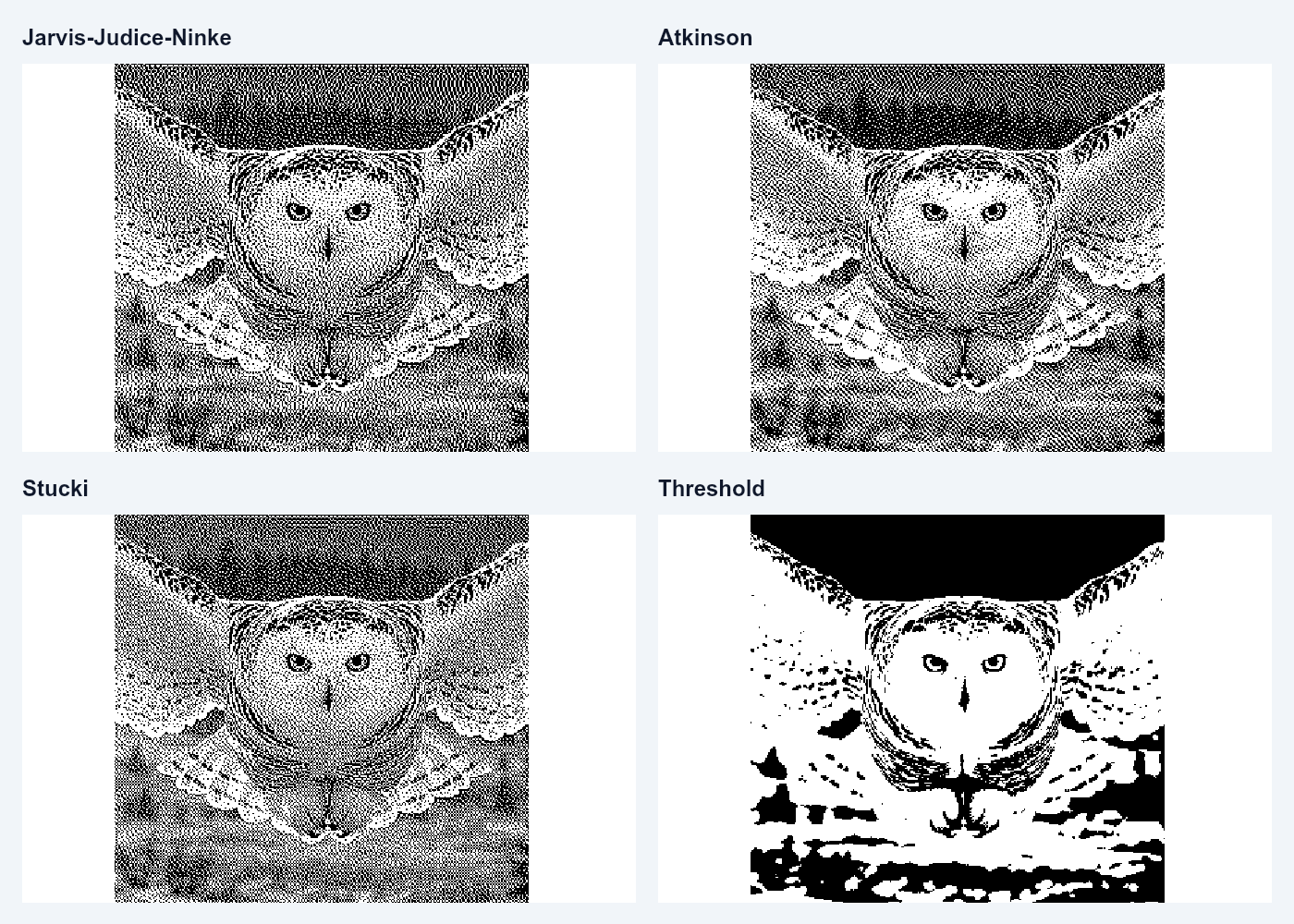
Algorithm reference
| Method | What you are selecting |
|---|---|
| Floyd-Steinberg | Error diffusion with a compact neighborhood; the default conversion. |
| Jarvis-Judice-Ninke | Error diffusion across a broader neighborhood. Listed as Jarvis in examples. |
| Stucki, Sierra, Burkes | Alternative diffusion neighborhoods and weights. Compare fine texture and smooth gradients. |
| Atkinson | A different diffusion pattern that can change apparent texture and contrast. |
| Bayer 4x4 | Ordered dithering with a regular repeating pattern. |
| Blue-noise style | Spatially varied thresholds. This is a style option, not a supplied measured blue-noise matrix. |
| Adaptive threshold | Uses a local neighborhood to decide black/white; useful to compare where illumination varies. |
| Halftone dots | Repeating dot cells with adjustable cell size. |
| Threshold | Simple black/white cutoff; useful for high-contrast artwork. |
| Grayscale | Continuous tone output for a laser-software workflow that handles tonal modulation. |
7. Image size, DPI and line spacing
Physical dimensions and pixel dimensions are different. Width and height are the intended size in millimeters. DPI specifies the number of pixels per inch. More DPI gives more pixels at the same physical size, but does not recreate detail absent from the source.
DPI, line interval and line density are linked. Change any one and the others update: pixels = mm / 25.4 x DPI; line interval (mm) = 25.4 / DPI; line density (lines/cm) = DPI / 2.54.
Example: a 100 x 100 mm output
| DPI | Pixels per side (rounded) | Line interval | Lines/cm |
|---|---|---|---|
| 150 | 591 | 0.1693 mm | 59.06 |
| 300 | 1181 | 0.0847 mm | 118.11 |
| 600 | 2362 | 0.0423 mm | 236.22 |
Sizing controls
| Control | Behavior |
|---|---|
| Image width / height | Set the intended physical size. With aspect lock on, changing one adjusts the other. |
| Image resolution | Allowed DPI is 72-1200. Processing is limited to 12 megapixels and 16,000 pixels on either side. |
| Output too large | Lower DPI or physical dimensions. Doubling DPI approximately quadruples pixel count at the same size. |
| PNG/BMP import size | Both exports embed DPI metadata. Still confirm the imported width and height in your laser software. |
Worked sizing example
A 100 mm square at 300 DPI becomes about 1181 x 1181 pixels (1.39 megapixels). At 600 DPI it becomes 2362 x 2362 (5.58 megapixels). The physical size remains 100 mm square; only the pixel sampling changes.
8. Preview navigation and dot cleanup
Image preview separates the source/crop view, adjusted grayscale, and approved engraving output. Use Grayscale looks good - show engraving to enable engraving exports. Back to grayscale adjustment returns to tone review without discarding the source.
Fit image fits the preview into its viewport. Actual pixels (1:1) starts at one image pixel per displayed pixel; additional zoom helps inspect individual dots. The zoom buttons, Reset view, arrow keys and Home affect the view only, not exported dimensions.
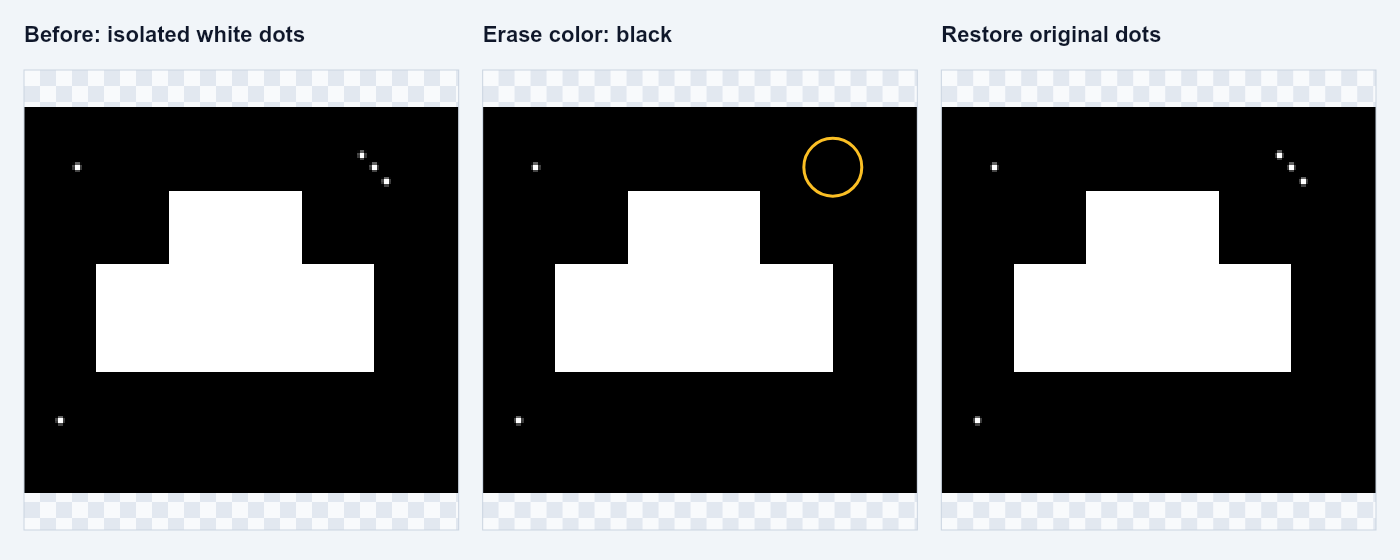
- Choose Move image to pan by dragging. Grayscale and engraving views have their own pan/zoom state.
- For converted-image cleanup choose Erase dots or Restore dots. A contrasting circular outline follows the pointer and represents the brush at the current zoom.
- Use the Brush radius slider or mouse wheel over the engraving preview or brush controls. Output cleanup uses a radius in pixels, from 1 to 100.
- Erase dots paints the selected Erase color. Background automatically follows the current fill and inversion; White and Black can override it. Restore dots copies the original converted pixels back into the painted area.
- Use Undo cleanup, Redo cleanup or Reset cleanup for this editing history. The main PNG/BMP downloads include cleanup; ordinary comparison/batch exports do not.
9. Laser setup, materials and presets
Select Laser type and Installed laser module to record the intended machine setup. The current laser entry is xTool M2, with module choices for 10W blue diode, 20W blue diode and 3W infrared. Select the module actually installed in your machine.
The tool stores machine values alongside the image recipe. It does not apply power, speed, passes or air/exhaust settings to a laser and does not embed machine instructions in PNG/BMP. Enter and verify those values in the machine software.
- Choose settings folder in a supported browser (Chrome/Edge on localhost or HTTPS). Custom materials and presets share laser-engraving-presets.json in that chosen folder.
- Adjust parameters, enter a new material or preset name, and use Save as new material or Save as new preset. Names cannot replace existing entries.
- Choose the same settings folder after reopening the app to reload your custom library. On a plain HTTP network address the browser folder picker may be unavailable.
Machine parameters
| Field | Meaning |
|---|---|
| Power (%) | Requested laser power percentage to record with the recipe; 0-100. |
| Speed (mm/s) | Travel speed to record; positive values. |
| Passes | Whole number of repeated passes, from 1 to 100. |
| Air assist / Exhaust (%) | Percent settings recorded for your setup; blank means unspecified. |
Which kind of save?
| Item | What it preserves |
|---|---|
| Material | A named complete recipe associated with a material. Built-in choices include Wood, Slate, Acrylic, Leather and Custom. |
| Preset | A named full recipe, including image and machine settings. Presets appears after Installed laser module; Default is built in. |
| Editable project | The source image, masks, current recipe, conversion and cleanup. Use this to continue work on a particular photograph. |
10. Vector Graphics and SVG
Graphics type selects Bitmap Graphics or Vector Graphics. Vector mode traces dark regions of the adjusted grayscale into closed SVG paths. It creates actual paths rather than embedding the bitmap in an SVG wrapper.
This is raster-to-vector tracing, not an SVG import or node-editing application. Photographs become flat traced shapes; fine tonal transitions are not retained as photographic grayscale.
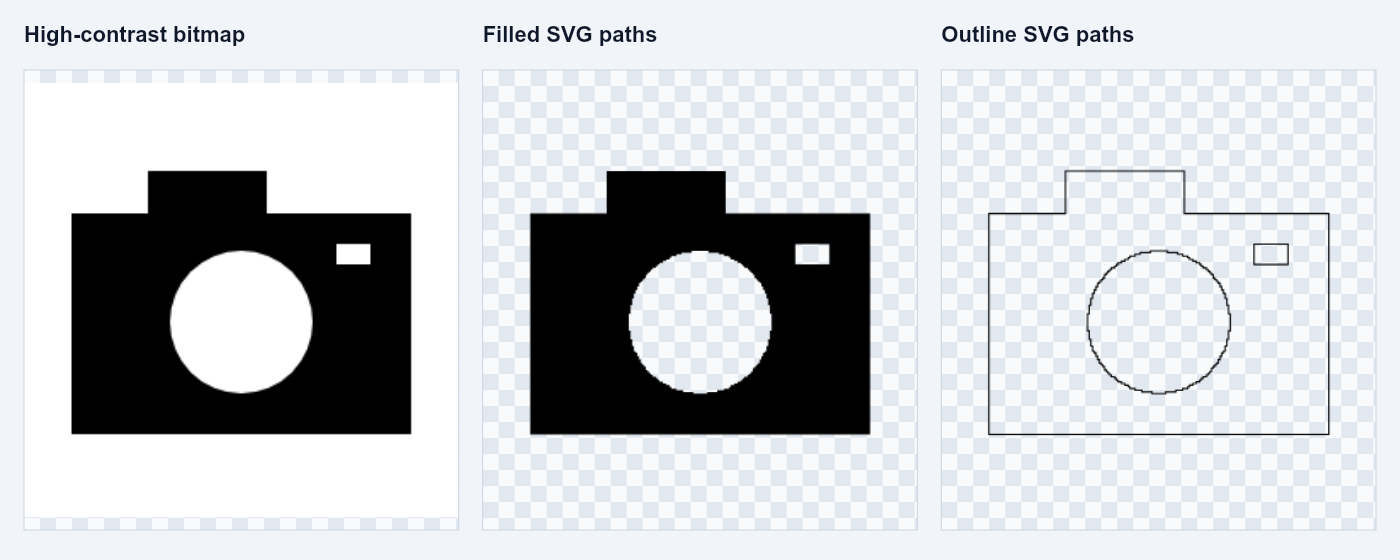
- In Laser setup & presets select Vector Graphics. Review and approve grayscale in Image preview.
- Adjust Trace threshold (1-254) to decide which gray regions become dark vector shapes. If no contours appear, increase the threshold or revise the grayscale.
- Choose Trace detail: 128, 256, 512 or 1024 samples on the longest edge. Higher values follow smaller detail but make more complex paths.
- Choose Filled engraving shapes or Outline paths. Download SVG preserves the physical width and height in millimeters.
- Inspect the file in your laser software and choose its operation there. Outline paths can be interpreted as cutting lines, so select the operation you intend.
11. Text, frames and comparison exports
Engraved text adds a name, date or dedication as part of the raster image. Text size is a percentage of the image short edge; horizontal and vertical positions are percentages. Frame width adds an engraving border. Text and frame are raster elements, not editable vector text in the exported PNG/BMP.
DPI & algorithm comparisons creates several alternatives from the current source. It keeps the current dimensions and shared image settings so you can compare one variable at a time. Current source masks and local adjustment strokes are used; converted-output cleanup is excluded.
- Prepare the source, review grayscale and approve it. For a detail study, crop to a useful area first.
- In Text, framing & production tools open DPI & algorithm comparisons.
- Choose Different DPI values and enter a comma-separated list such as 200, 300, 400. The algorithm stays the same. Or choose Different conversion algorithms and tick Jarvis, Atkinson and Stucki at the current DPI.
- Click Download comparison ZIP. You may choose 1-8 variants; DPI values must be between 72 and 1200 and each output must fit the size limits.
- The ZIP includes individual full-resolution PNGs, settings.json, and comparison-sheet-reference-only.png. The app also displays the sheet. Use individual PNGs for engraving; the sheet is only a visual reference.
One-variable example
To compare dot texture, hold width at 100 mm and DPI at 300, then select three algorithms. To compare sampling, keep Jarvis selected and generate 200, 300 and 400 DPI. Avoid changing tone controls between those variants if you want an interpretable comparison.
12. Batch processing
Batch processing converts multiple selected images using one current recipe. Images are processed sequentially in the browser, and the results are packaged into one engraving-batch.zip. It is useful for a series with similar visual requirements, after checking the recipe on an example.
The shared settings include algorithm, tone, dimensions/DPI, crop, rotation, mirroring, text and frame. Source-specific masks, local adjustment strokes and converted-output cleanup are excluded. AI background removal is not automatically run on every batch image.
- Set up the recipe you want to reuse. Confirm width, DPI, algorithm, crop, text and frame before selecting a group.
- Open Batch processing under Text, framing & production tools. Select several PNG, JPEG, WebP or BMP files.
- Click Process selected images into ZIP. Progress identifies the current image. Cancel processing stops the batch.
- Open the downloaded ZIP. Each successful input has a numbered PNG. settings.json records the recipe; errors.txt is included if some inputs fail.
- Inspect several outputs, especially differently shaped images. The same crop fractions and text positions can affect each subject differently.
Batch behavior
| Situation | Result |
|---|---|
| Aspect lock on | The chosen width is retained; height is calculated from each image after crop and rotation. |
| Aspect lock off | Every image uses the chosen width and height, which may change proportions. |
| File or processing failure | Other images can continue; failures are recorded in errors.txt if any outputs succeed. If none succeed, the app reports an error. |
| Input limits | Each file must be supported, at most 30 MB and 40 megapixels. Each output must fit the 12-megapixel / 16,000-pixel limits. |
Batch example
For ten similarly framed landscape photographs, set a shared width and DPI, keep aspect lock on, and avoid a subject-specific crop. Process the group, then inspect the PNGs. A portrait image in that group will get a different height; it will not be forced into the landscape proportions.
13. Save, reopen and delete editable projects
Save project preserves editing, unlike a finished PNG/BMP. Select both a local project folder and a settings folder, grant access, enter a Project name, then save. If either folder is missing, a message identifies it and saving is blocked. Each save creates a new uniquely named .laser-project archive in that folder on your own computer. Earlier saves remain separate. Images and settings are not uploaded to the hosting server.
Open Project, immediately to the left of Save project, lists copies in the selected local folder. Open restores the source, recipe, mask, saved grayscale/engraving and cleanup. The trash icon beside Open requests confirmation before deleting only that local archive. Deleting the saved copy of the current project leaves its image in memory and marks it unsaved.
- Choose local project folder in Chrome or Edge, served over HTTPS or localhost. Select a folder on your computer and allow access. Choose it again after reopening the app. Also choose the settings folder in Materials & preset library. Both folders must be selected before Save project, Download project copy, or Save and continue is available.
- Enter a Project name and click Save project. Wait for confirmation that the archive was written to your local folder.
- Click Open Project to list local archives. Open restores editing; the trash icon deletes the selected copy after confirmation.
- Download project copy and Import project file can transfer a portable .laser-project archive between computers.
- When replacing an edited image or opening another project, choose Save and continue, Discard and continue, or Cancel. A cancelled folder selection or failed save keeps your edits.
Files inside a .laser-project archive
| File | Purpose |
|---|---|
| project.json | Name, complete recipe, source/output dimensions, review status and output cleanup strokes. |
| source.png | Original decoded source for further editing. |
| grayscale.png | Saved adjusted grayscale. |
| generated.png | Converted output before dot cleanup; used by Restore dots. |
| converted.png | Finished converted output with cleanup. |
| subject-mask.bin | Background mask, present when a subject mask exists. |
14. Three worked editing examples
These examples describe image preparation, not machine-specific engraving settings. The numerical adjustments are examples to try and compare; the correct result depends on the source and the surface.
A. Generated owl with a circular crop
Upload the photograph. Select Ellipse / circle, then Square / circle crop. Move the selection around the subject, Apply crop, and keep aspect lock on. Set width and height to 100 mm with 300 DPI. Inspect grayscale; try contrast 15 and no sharpening first. Compare Jarvis and Atkinson. Approve grayscale, inspect actual pixels and clean isolated dots. Save project, then download PNG to preserve circular transparency.
B. Subject on a dark background
Remove the background and refine it with source Erase/Restore. Select Black fill. If a negative is needed, enable Invert black and white; black fill becomes white. Inspect fine edges in grayscale and the converted preview. In output cleanup, Background erase color follows the effective background; force Black or White only when you intend a different fill. Save an editable project before replacing the image.
C. A simple logo as SVG
Upload high-contrast artwork. Adjust grayscale so the intended shapes are clearly separated. Select Vector Graphics, approve the grayscale, and start around trace threshold 128 and detail 256. Compare Filled engraving shapes with Outline paths, then download SVG. Check dimensions and assign the intended operation in the laser software. Use a higher detail only if smaller features are actually needed.
15. Start the app and resolve common problems
Run the studio from its own folder. Open PowerShell, change to Q:\Laser Engraving Studio, and run pnpm dev. Keep the terminal open. Ctrl+C stops the server; run pnpm dev again to restart. The local address is http://localhost:3001/.
On another PC on the same network, use the server computer's IPv4 address and port 3001, for example http://10.0.0.126:3001/. Confirm the current address with ipconfig because it can change. The server PC must stay on, and Windows Firewall must allow the connection on your intended network.
cd 'Q:\Laser Engraving Studio'
pnpm dev
Troubleshooting
| Symptom | What to check |
|---|---|
| Page does not open | Check the server terminal for Ready and use port 3001. If already running in that terminal, Ctrl+C then pnpm dev restarts it. |
| Download disabled or preview dim | Wait for conversion. Correct invalid settings or output size, and approve the grayscale for engraving downloads. |
| Image processing failed | Use Retry image processing after correcting the error. If output is too large, reduce DPI or dimensions. |
| Background removal fails | Read its stage-specific message. Reload if needed, confirm local model/runtime files exist, or refine with manual Erase/Restore. |
| Only a crop outline is visible | In Subject & composition click Apply crop. Edit crop returns to the full source; the selected area is already used for conversion. |
| Circular crop appears rectangular | Use PNG for transparency and look for checkerboard corners. BMP cannot store transparent corners. White inside the circle is still part of the selected image unless masked. |
| Black background erases white | Check Erase color. Background follows fill and inversion; choose Black explicitly if that is your intended paint color. |
| Edits disappear after changing parameters | Output cleanup resets after regeneration. Finish the conversion setup before cleanup and Save project to preserve the current result. |
| Custom material library cannot open | Use Chrome/Edge on localhost or HTTPS. Browser folder access may not be offered on a plain HTTP LAN address. |
| Wrong physical size after import | Confirm millimeters in laser software. PNG/BMP include DPI; SVG includes physical dimensions, but importers may apply their own scaling. |
16. Contact and feedback
Click Contact in the support banner to send feedback, comments or suggestions to the studio owner. The form asks for your name, email address and comment. Your email address lets the owner reply directly to you.
Only the contact details and comment are sent by email. Your source images, projects, presets and engraving files are not attached.
- Enter your name and a valid email address, then describe your feedback in Comment.
- Choose Submit and wait for the confirmation. This means the email service accepted the message for delivery.
- If sending fails, your entered fields remain available. Wait and retry later. Use Cancel to close without submitting.
Illustrations use actual studio processing outputs and labeled workspace schematics. October 21, 2026 edition.